Product options and add-ons with their own price for WooCommerce. Add gift wrap, a name on a cake, a size or home assembly to a product page, each with its own price, and see the customer's choices in the cart, checkout, order and emails.
Coming soon to WordPress.orgRequires WooCommerceWordPress 6.6+ · PHP 8.0+Free + Pro
yourshop.com/wp-admin
01 / 05Option group
WHAT IT DOES
Sell the extras, not just the product
Options with a price
Text, dropdown, radio, tick box, number, date or colour. Any choice can add a fixed price, such as "Gift wrap +RM5".
On every order
What the customer chose shows in the cart, at checkout, on the order, in the emails and in the admin.
Priced on your server
The price is worked out on your site with your currency and tax settings. A changed request is refused.
TRY IT · LIVE PREVIEW
Set the prices, then shop like a customer
This is a working copy of one Product Options group and a sample product. Change a price on the left, pick options on the right. Nothing is sent anywhere.
Live preview · nothing is sentLIVE DEMO
Furniture options
WooCommerce → Product Options → Option groups
Furniture
Leather Lounge Chair
RM1,590.00
Cart
Your cart is empty.
Demo only. On a real shop the final price is worked out on your server. The live options total line is the Pro price summary box.
Pro is for 1 site. Prices are approximate in RM; you pay in US$.
SETUP GUIDE
How to set it up.
STEP 1
Install Product Options
Make sure WooCommerce is installed and active.
In WordPress, go to Plugins → Add New and search for Product Options. Or upload the zip under Plugins → Add New → Upload Plugin.
Click Install Now, then Activate.
Open WooCommerce → Product Options. You are asked one question first: "Where should your first option group show?" Pick all products, one category, or "I'll pick later". Nothing changes on your live shop until you choose.
STEP 2
Create an option group
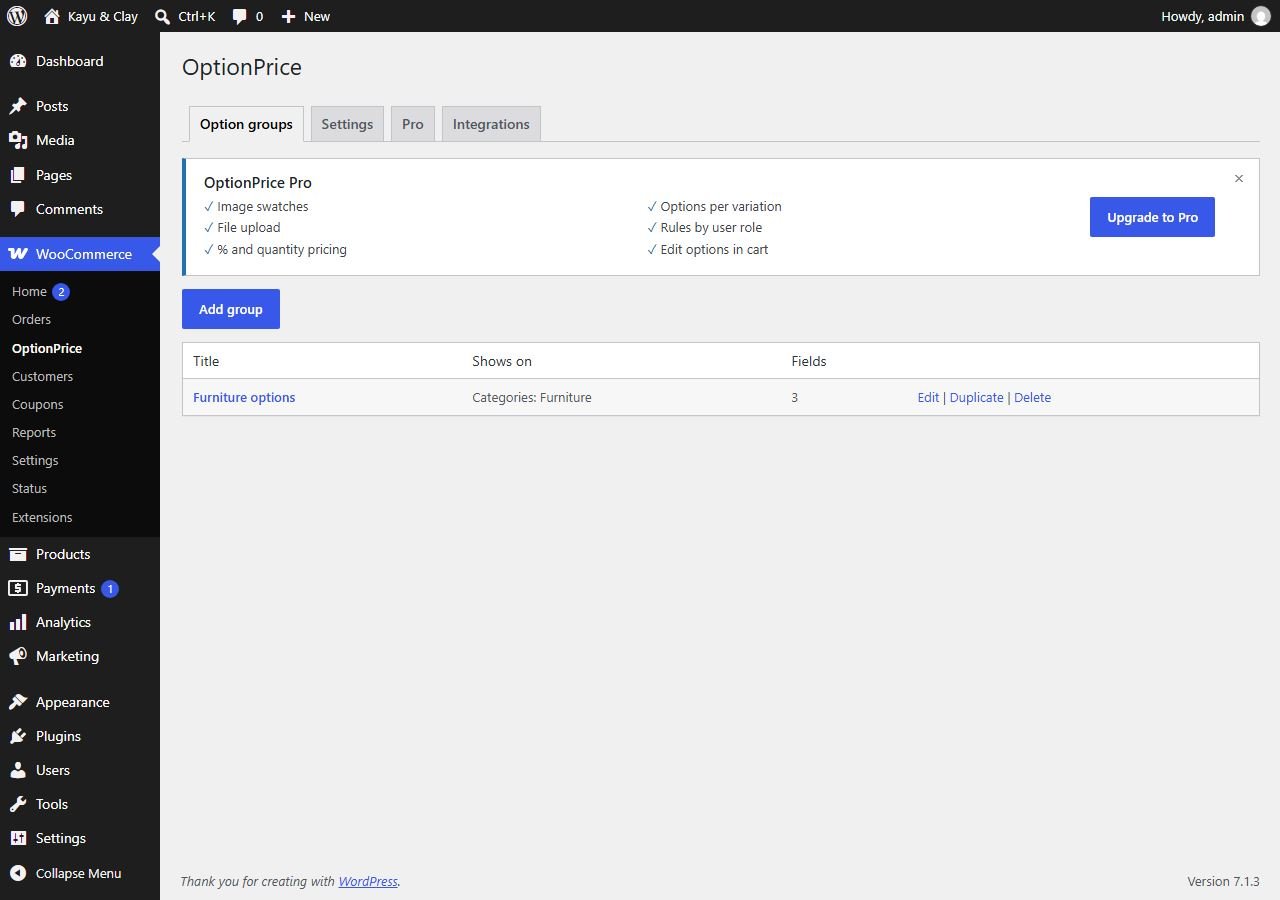
A group holds all the option fields for a set of products. On the Option groups tab, click Add group. Each group in the list shows where it shows and how many fields it has, with Edit, Duplicate and Delete links.
WooCommerce → Product Options → Option groups
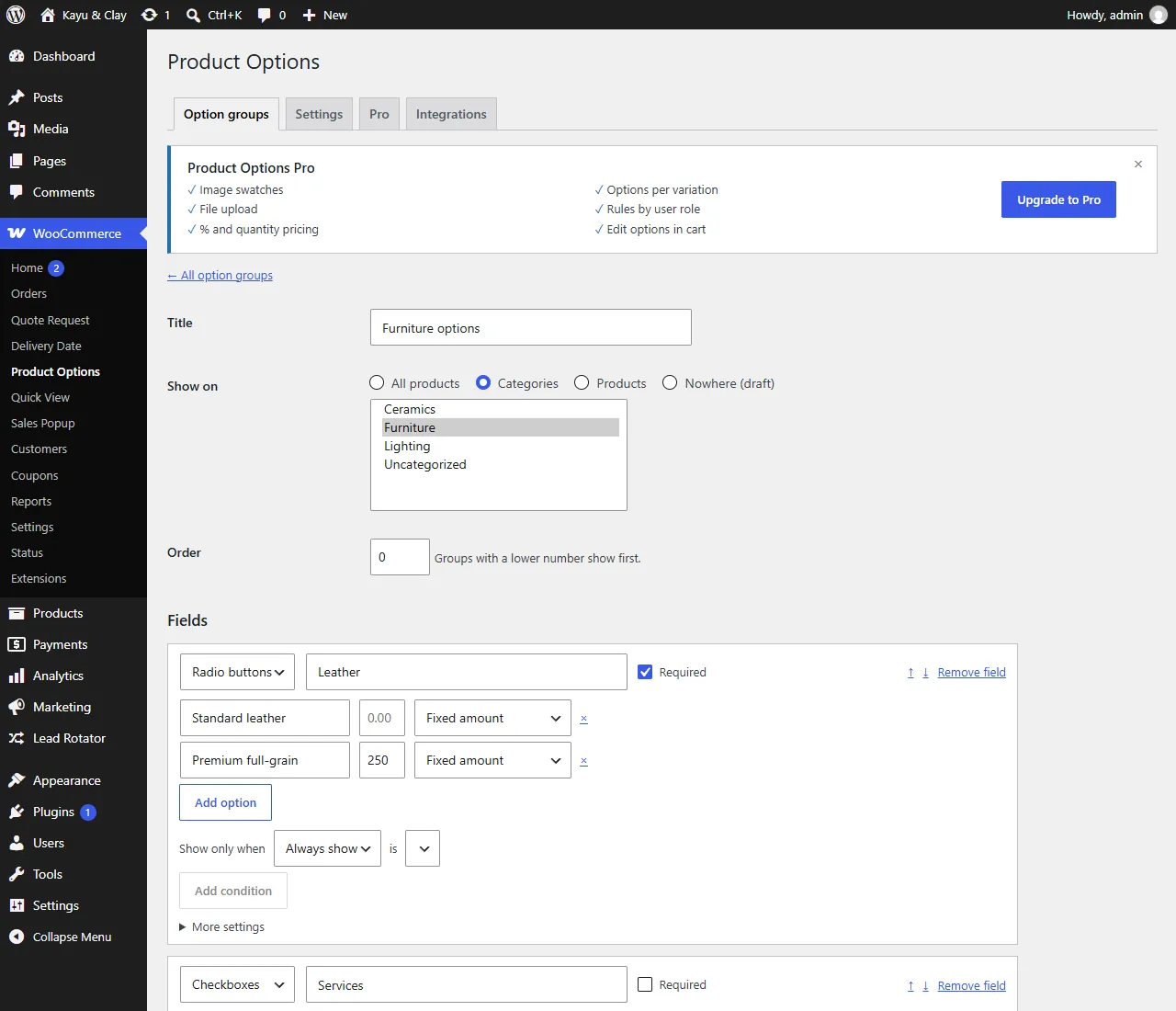
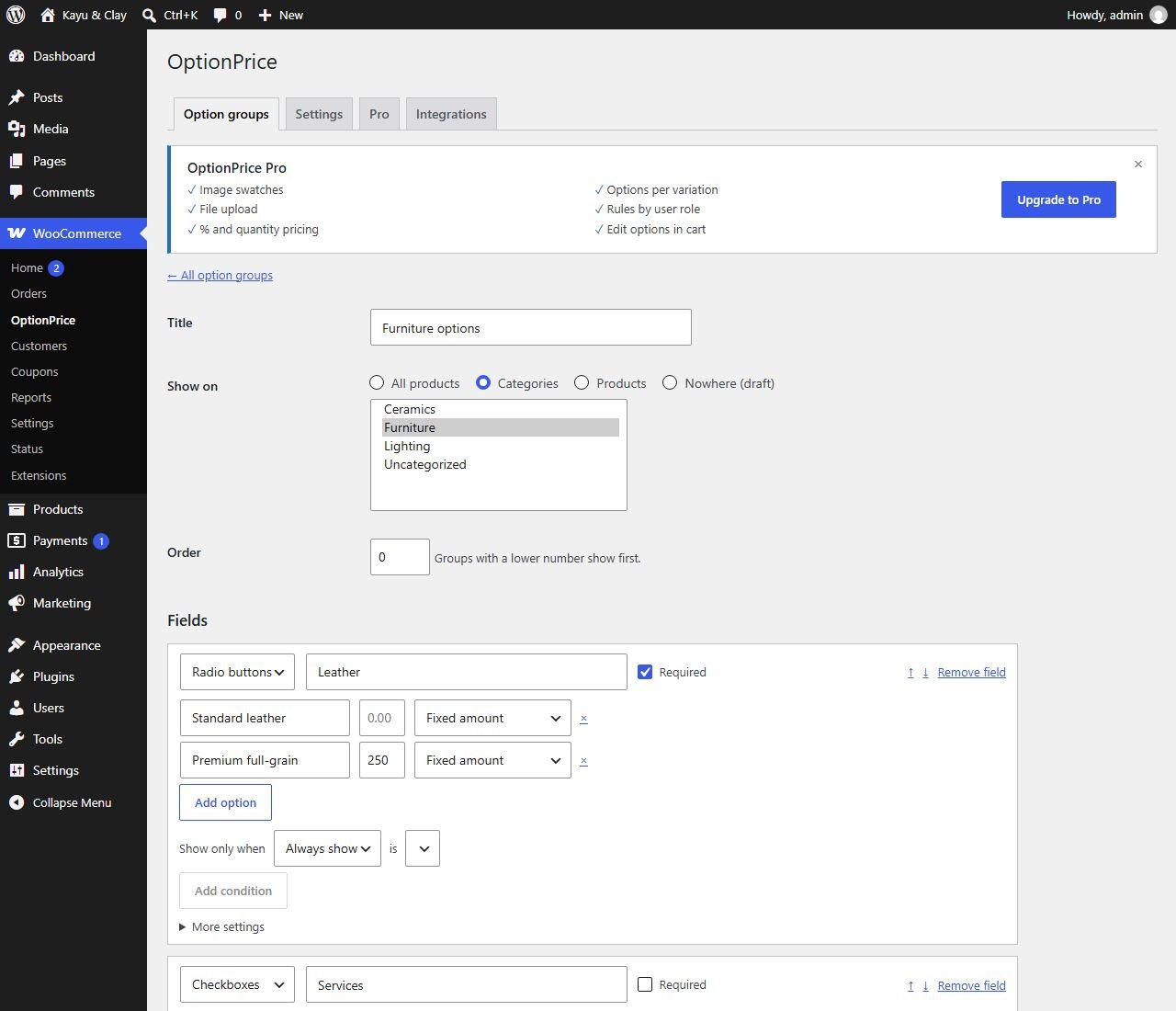
Title: a name for you, for example "Furniture options".
Show on:All products, Categories, Products, or Nowhere (draft) while you are still working on it.
Order: groups with a lower number show first.
STEP 3
Add fields and prices
Under Fields, add one field per question you want to ask:
Choose the field type, for example Radio buttons or Checkboxes, and type the label, for example "Leather".
Tick Required if the customer must answer it.
For each choice, type its name and its price, with Fixed amount. Leave the price at 0 for a choice that costs nothing. Click Add option for more choices.
Show only when sets one simple rule, for example show a field only when another box is ticked.
WooCommerce → Product Options → Option groups → Edit
Every field and every choice has its own CSS class, so you can style one option without touching the others. Our CSS only sets spacing and layout; the rest comes from your theme.
STEP 4
What shoppers see
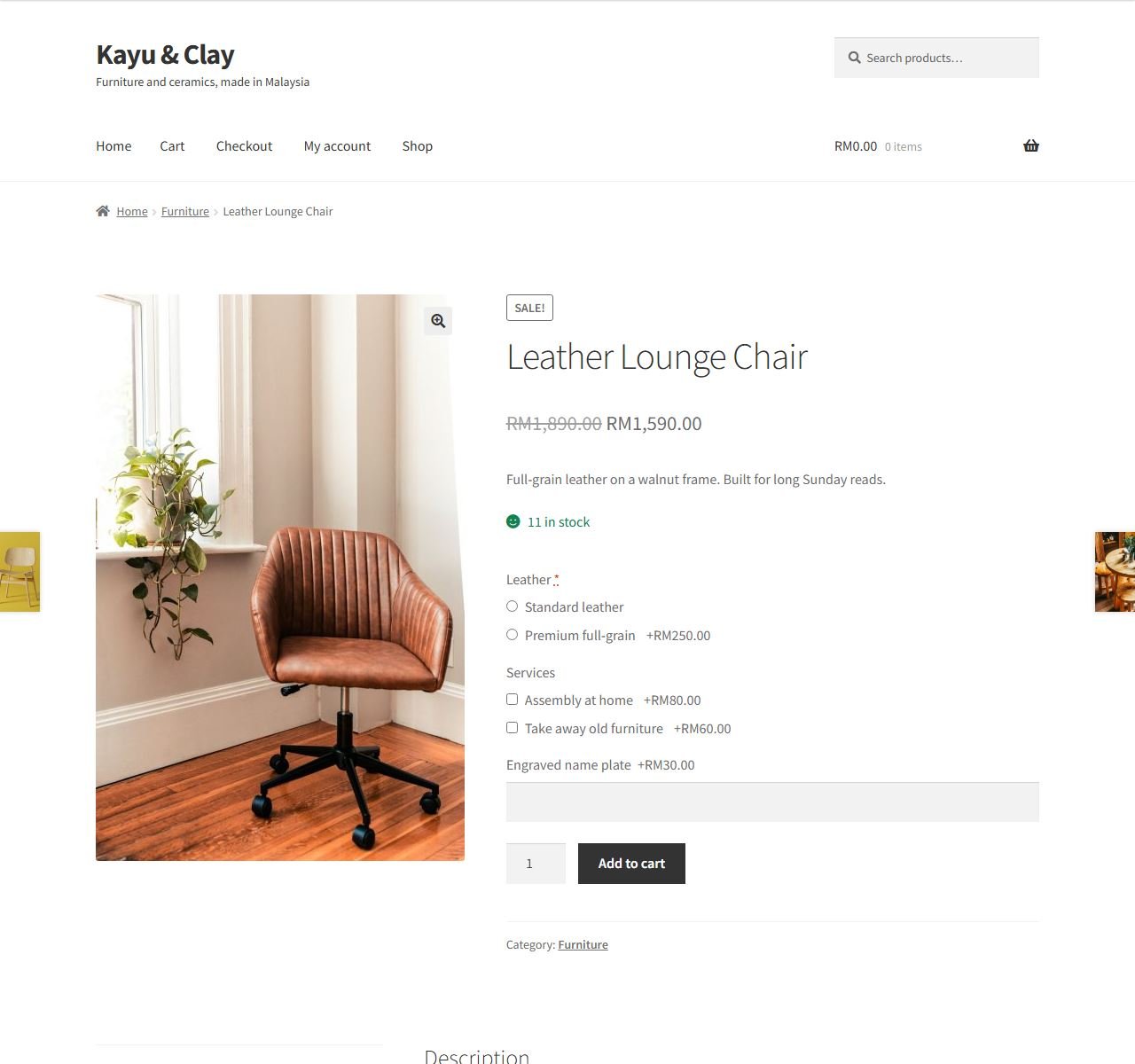
The fields show above Add to cart, with the extra price next to each choice. When the item is added, the price is worked out on your server with your currency and tax settings, and the choices go with it to the cart, checkout, order and emails.
Product page (Storefront theme)
On shop and category pages, products with required options show Select options instead of Add to cart, so shoppers cannot skip them. If a cache or "defer JavaScript" plugin stops our script, the fields still show as a plain form and the server still adds the right price.
STEP 5
Settings and backup
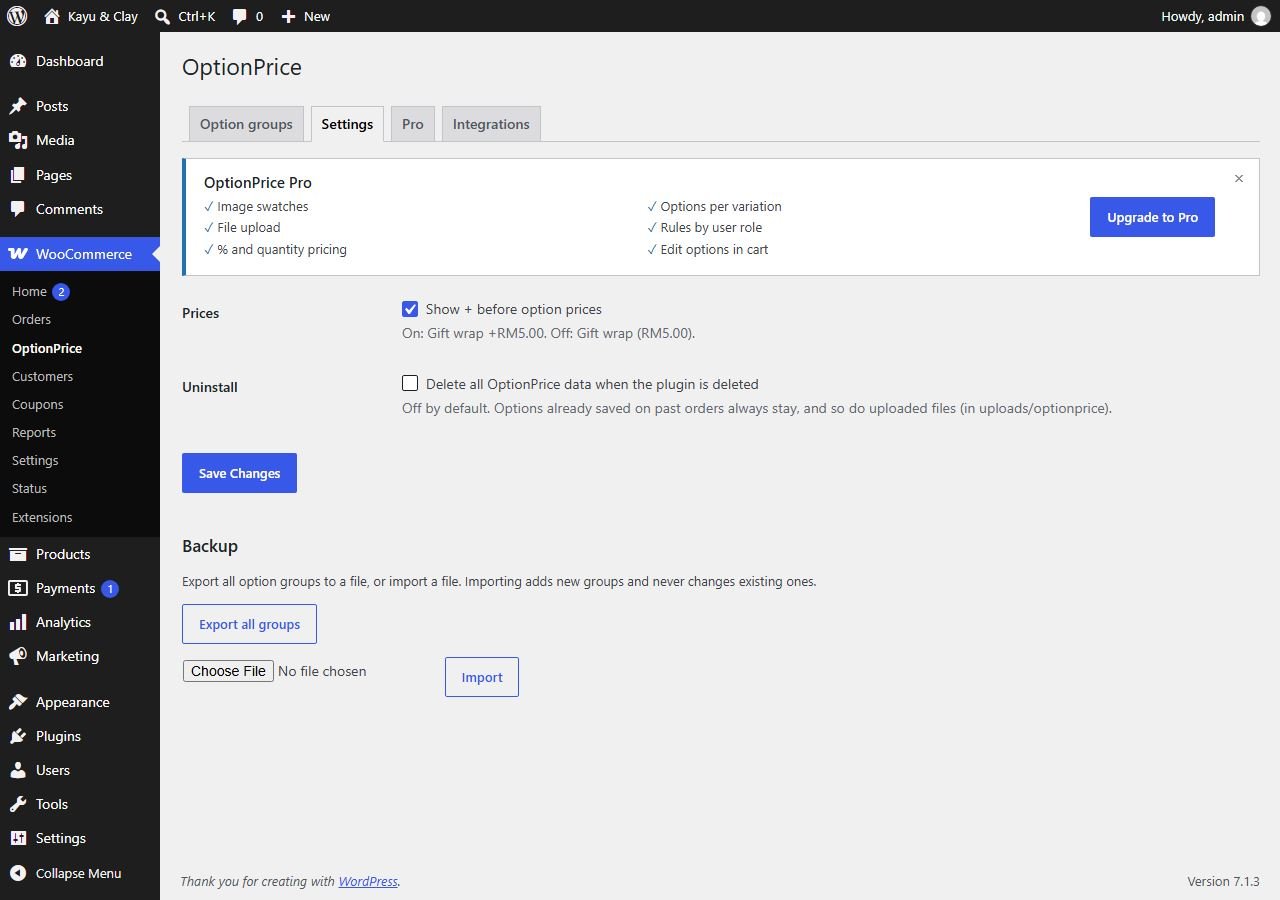
Open the Settings tab.
Show + before option prices: on shows Gift wrap +RM5.00, off shows Gift wrap (RM5.00).
Delete all Product Options data when the plugin is deleted: off by default. Options saved on past orders always stay.
Backup:Export all groups saves your groups to a file. Import adds new groups and never changes existing ones.
WooCommerce → Product Options → SettingsSTEP 6
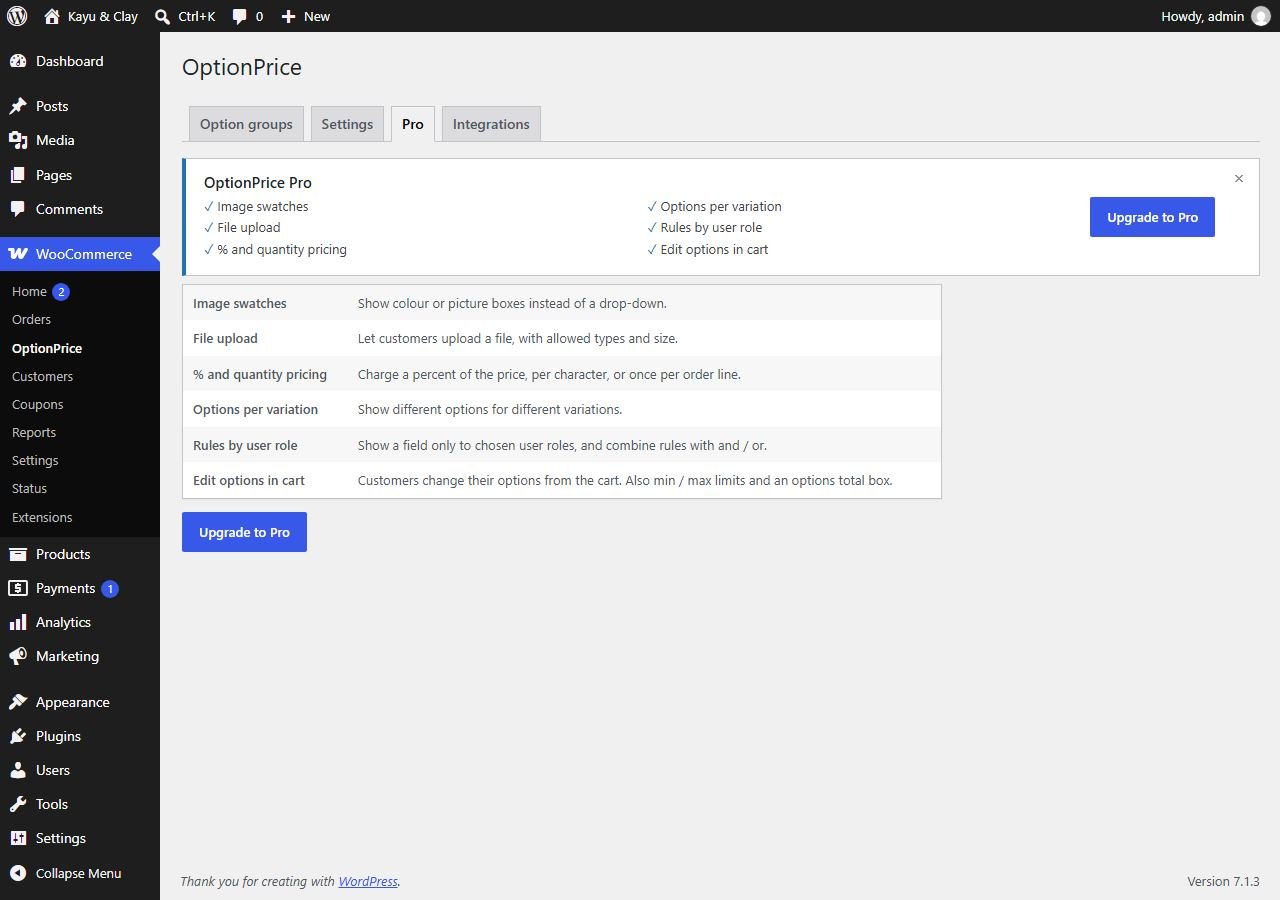
Pro features
The Pro tab lists what the paid upgrade adds. Nothing in the free plugin is locked or time-limited. Pro adds:
Image swatches: colour or picture boxes instead of a drop-down.
File upload: the customer sends a logo or photo, with allowed types and size.
Prices as a percent of the product price, per character, or by quantity.
Different options per variation, fields shown by user role, and many rules combined with and / or.
Edit options from the cart, min / max limits, and a price summary box with the options total and grand total.
WooCommerce → Product Options → Pro
Pro from about RM22/month or RM169/year
FAQ
Common questions
Option prices follow the product's tax class and your shop's tax settings. Labels, the cart and the order show the amount the same way your shop shows product prices, so they match the line price.
Yes. The options show on both the classic and the Block cart and checkout, on the order and in the emails. The "Edit options" link (Pro) is only in the classic cart.
Yes. The options the customer chose are added to the quote message. In quote mode there is no add to cart, so required fields are not enforced there.
Nothing. Existing orders keep what the customer chose and the price they paid, even if you uninstall the plugin.
The experimental WooCommerce "Add to Cart + Options" block. Use the normal Add to Cart button or the classic product template.
The script and style load only on pages that show option fields. Product Options sets no cookies and sends nothing to any other server.
Email underpixel2015@gmail.com with your site address and a screenshot. We reply within one business day.
 underpixelstudio.my

 Quote RequestHide prices and add a WhatsApp quote button.
 Lead RotatorShare WhatsApp chats between your sales staff, in turn.
 Sales Popup"Just bought" popups from your real orders.
 Delivery DateCustomers pick a delivery date at checkout.
 Quick ViewProduct quick view from the shop page.