Quick view popup
Full photo gallery, price, description and Add to cart in a popup. On phones it slides up from the bottom.
 underpixelstudio.my
Hide prices and take quotes on WhatsApp.
Turn your PDF catalogue into WhatsApp orders.
Quotes & invoices, LHDN e-Invoice ready.

Product quick view for WooCommerce. A Quick view button on your shop pages opens the product in a popup, so shoppers see the photos, pick a variation or option and add to cart without leaving the list.
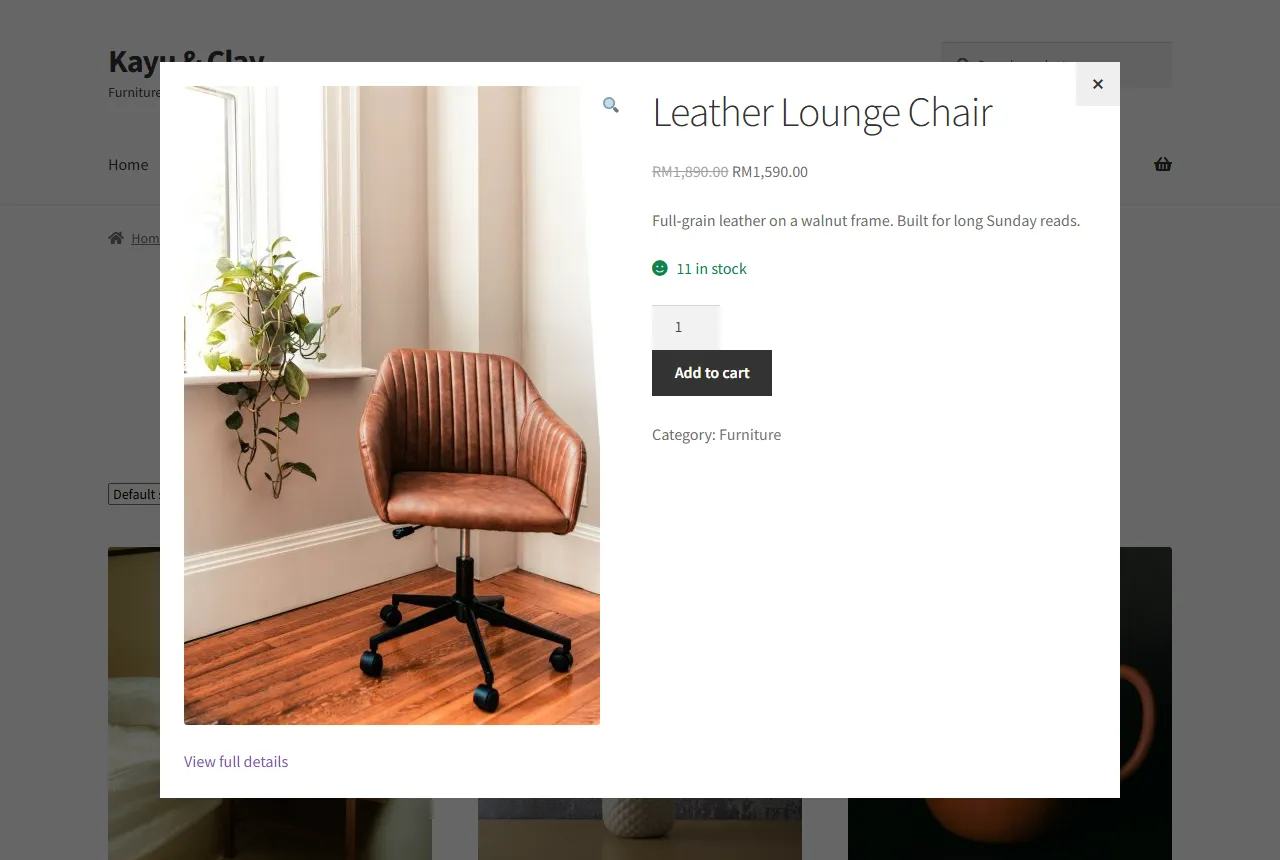
Full photo gallery, price, description and Add to cart in a popup. On phones it slides up from the bottom.
The popup loads the product's real add-to-cart form, so tested swatch, option and quote plugins work inside it.
If the popup cannot load, the button opens the normal product page. It uses your theme's own button and form styles.
This is a working copy of Quick View's General settings and a small sample shop. Nothing is sent anywhere.
The first time you open the settings, Quick View asks one question: "Where should the Quick view button show?" Nothing is guessed for your theme. You can change it later on the General tab.
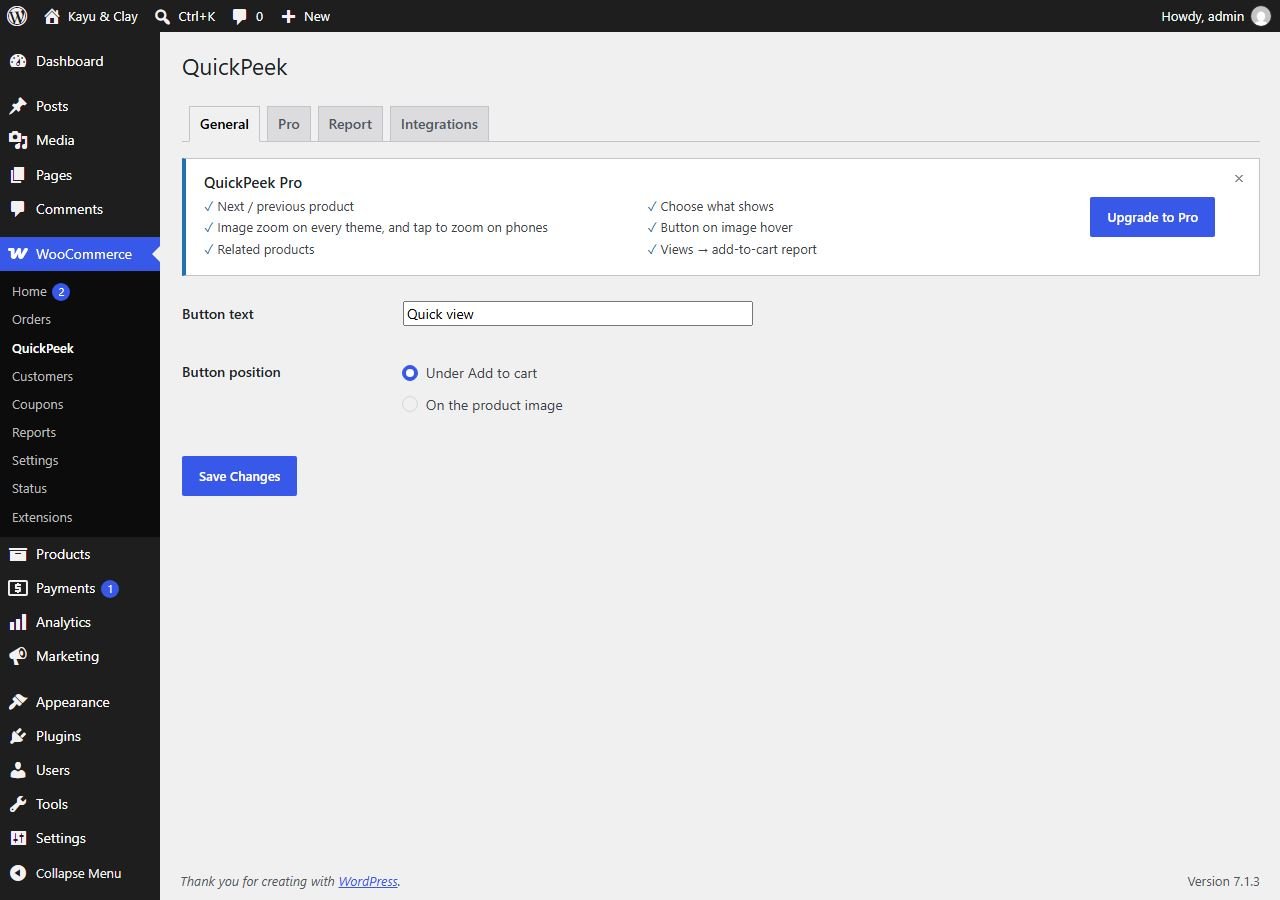
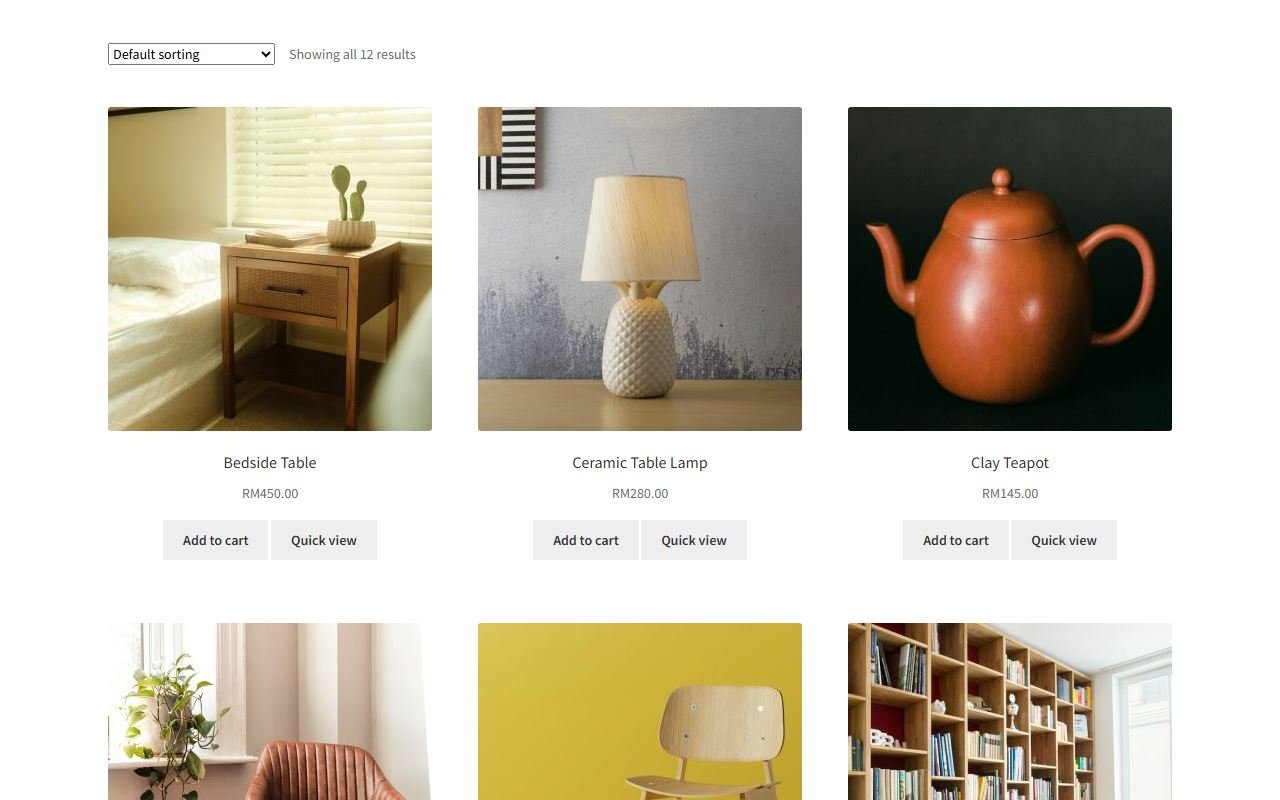
Open your shop page. Each product has a Quick view button. Pressing it opens the product in a popup with its gallery, price, short description, stock, quantity and Add to cart, plus a View full details link to the product page. The cart count updates without leaving the page.
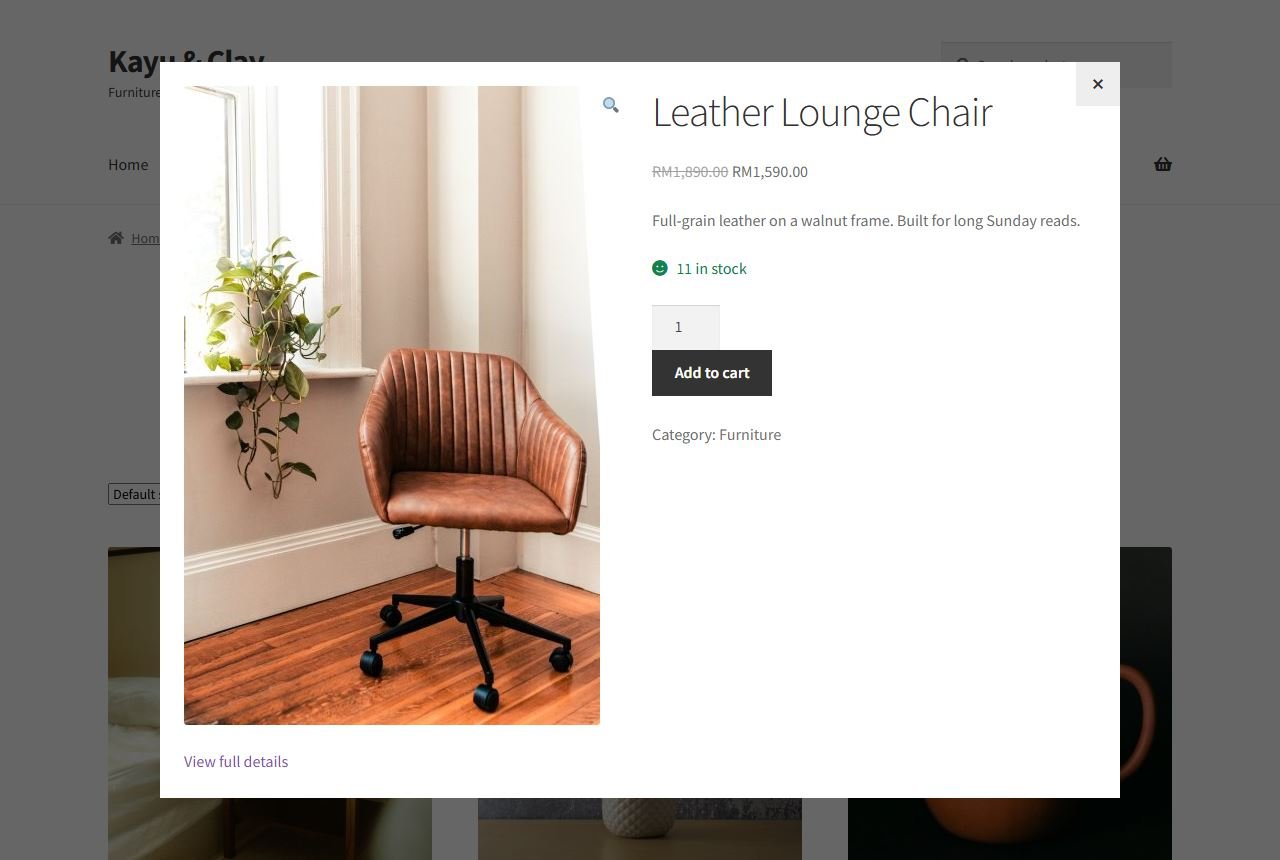
The popup loads the same add-to-cart form the product page prints, and Add to cart uses WooCommerce's own request. So prices and checks from other plugins are the same as on the product page. Each release is tested with:
Pro options are shown greyed out on the Pro tab, so you can see what they do. Pro adds:
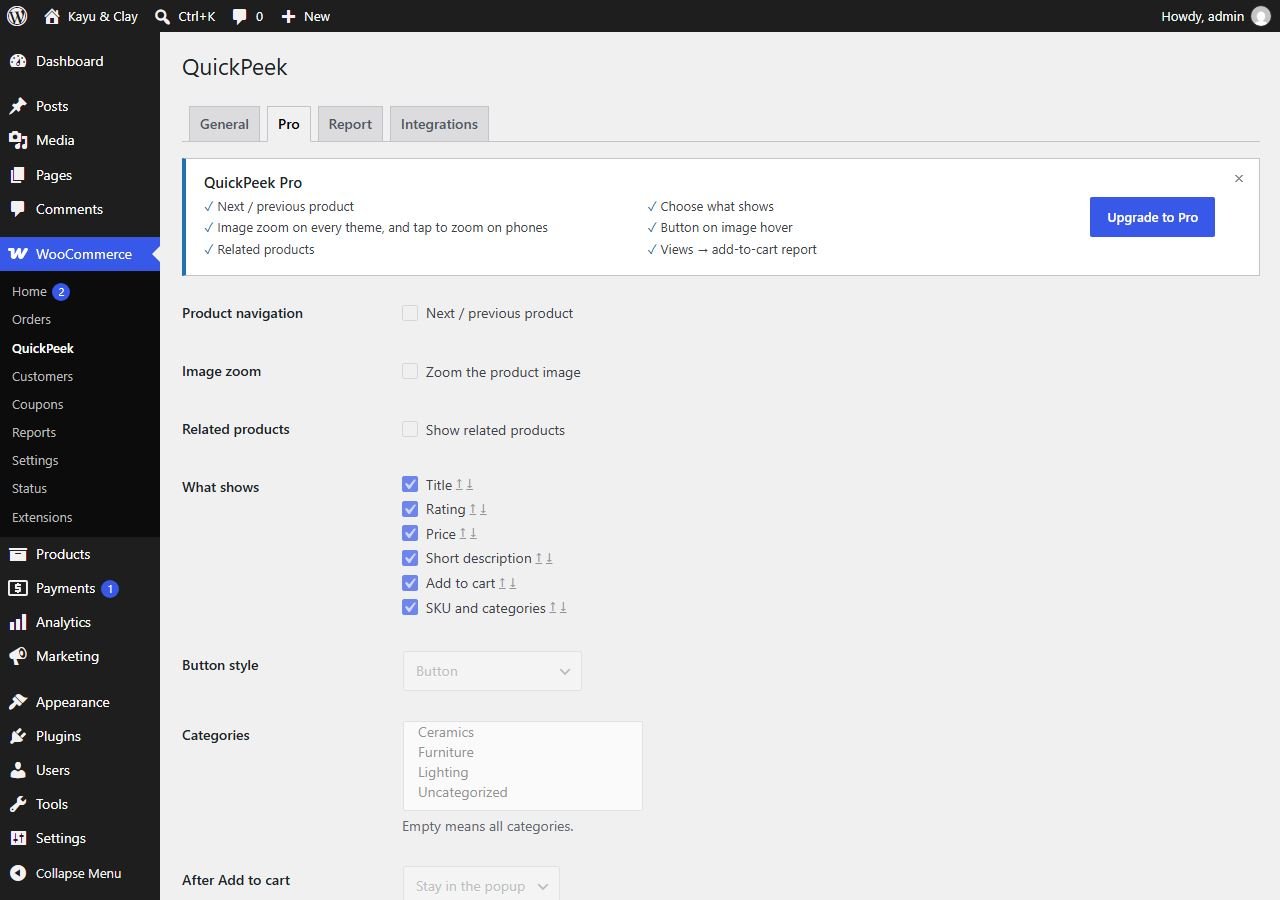
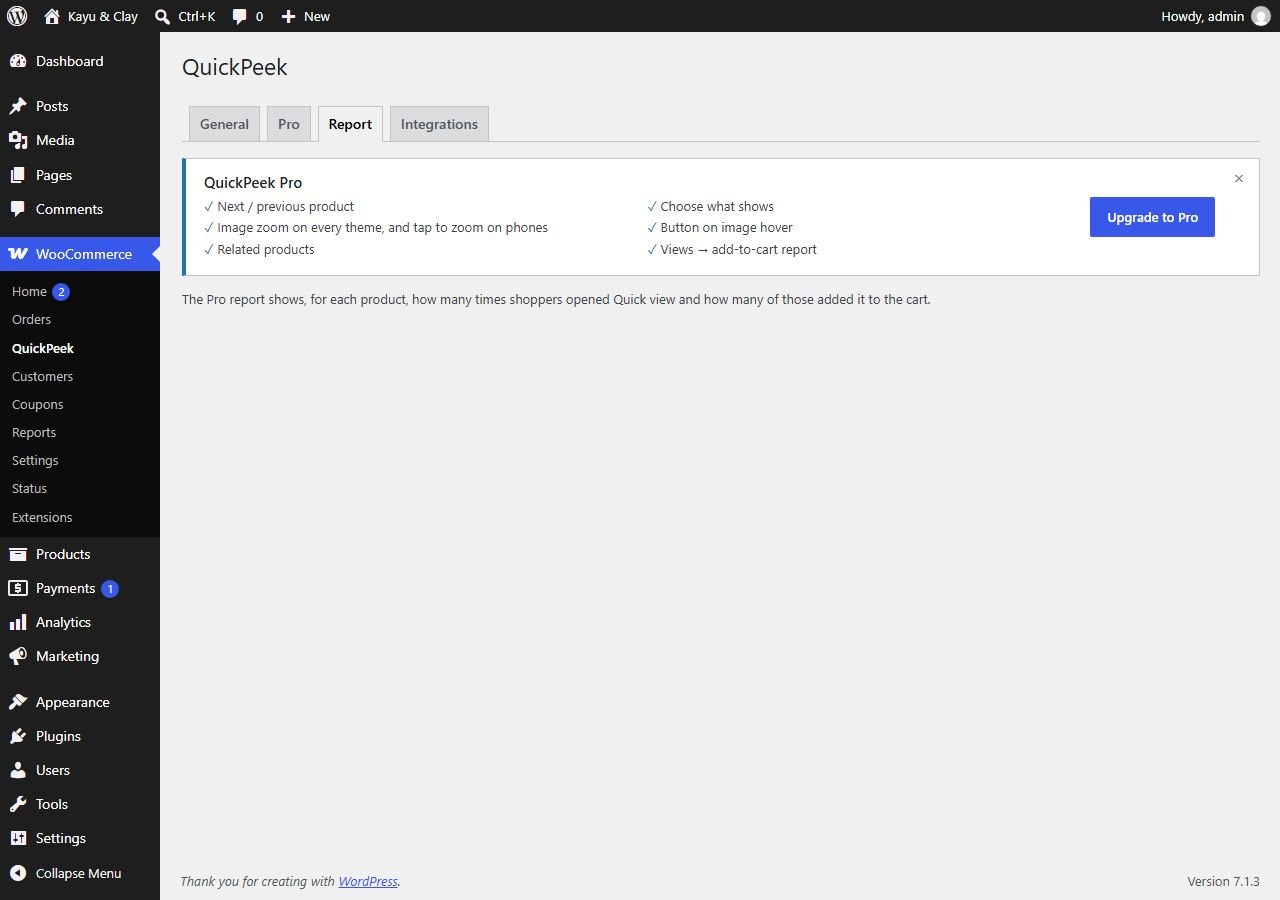
The Report tab in Pro shows, for each product, how many times shoppers opened Quick view and how many of those added it to the cart. It stores no customer data.
Pro from about RM22/month or RM169/year
 Quote RequestHide prices and add a WhatsApp quote button.
 Lead RotatorShare WhatsApp chats between your sales staff, in turn.
 Sales Popup"Just bought" popups from your real orders.
 Delivery DateCustomers pick a delivery date at checkout.
 Product OptionsProduct options and add-ons with their own price.
Quick View, product pages, swatches and speed, set up and tested for a fixed price.
Tell us about your business. You get a clear quote before any work starts.