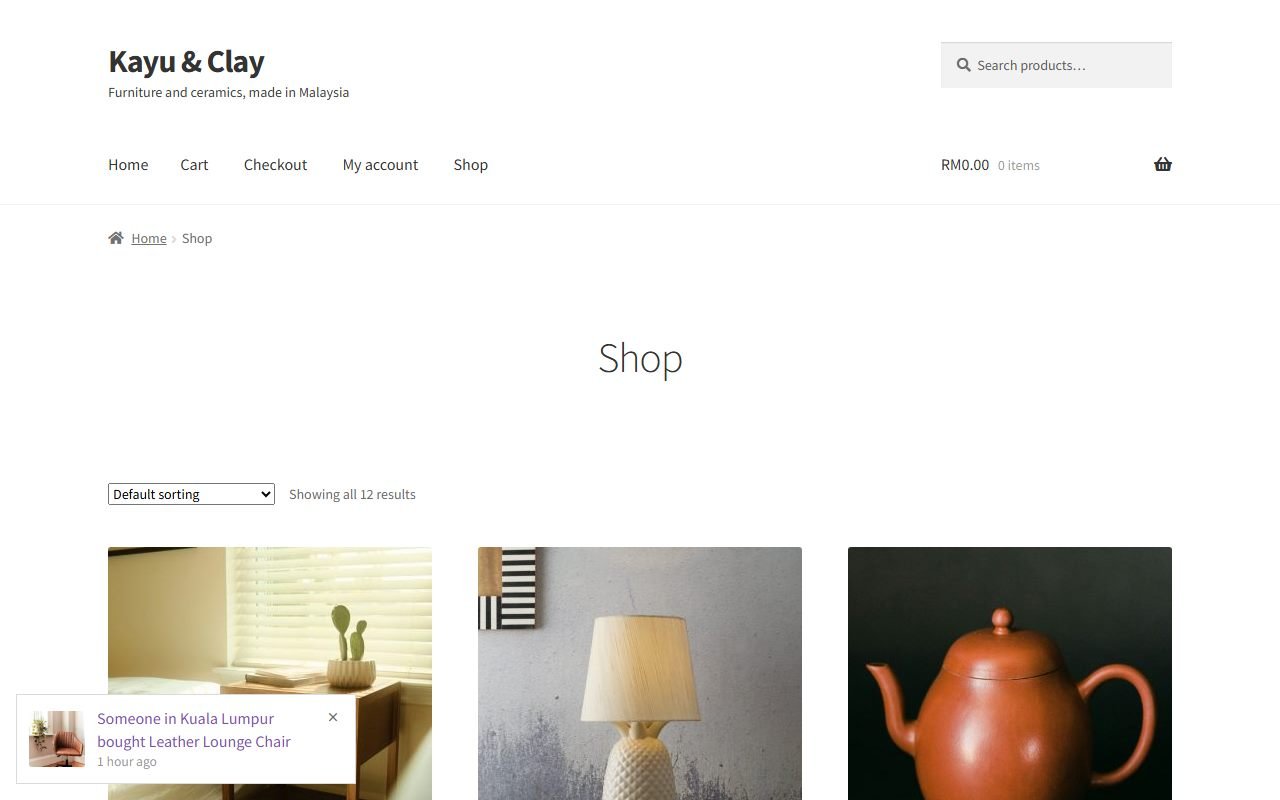
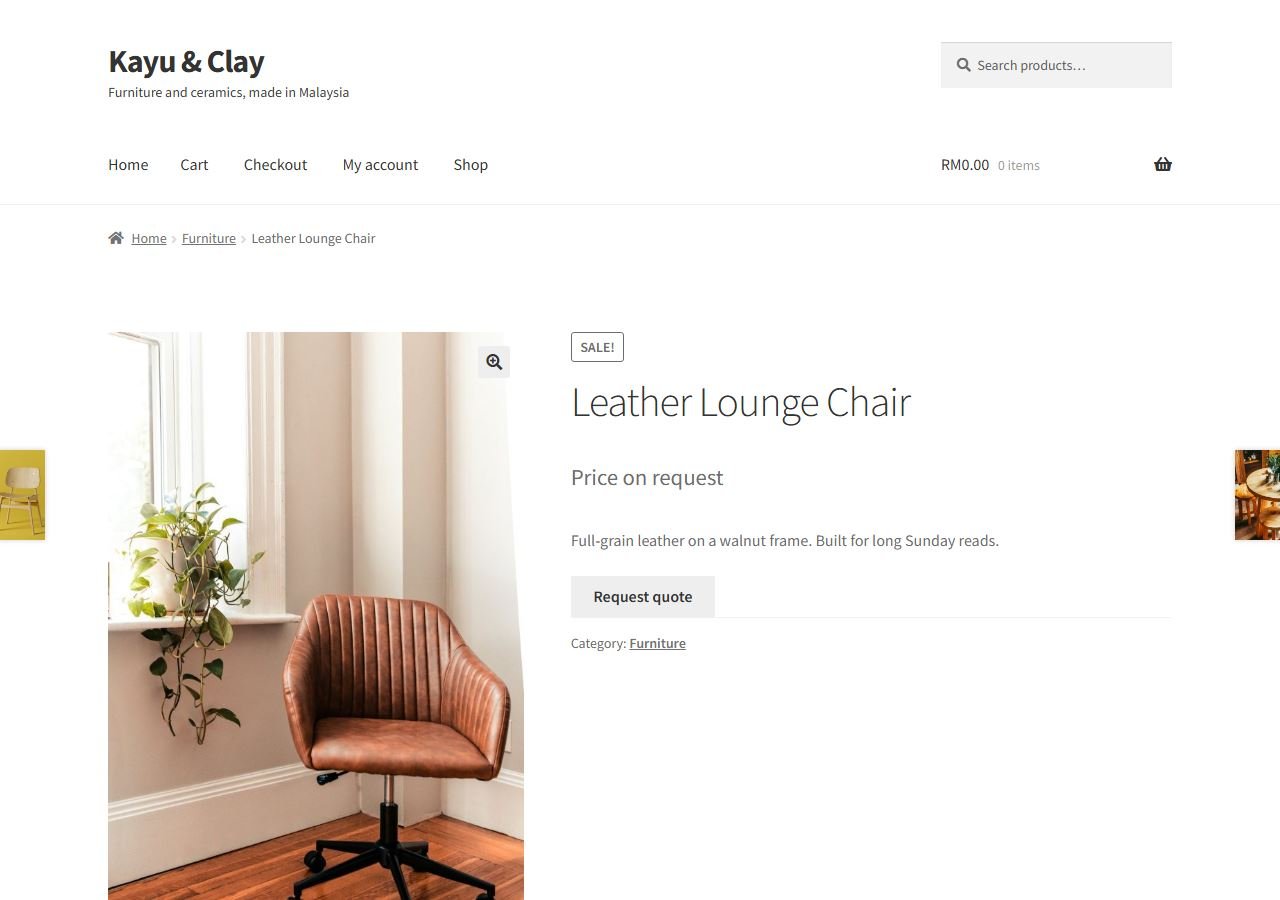
Many shops do not want to show a fixed price online. Furniture makers, printers, machinery suppliers and wholesalers often price each order by size, material or quantity. Others simply want to talk to the customer first.
WooCommerce has no built-in way to hide prices and ask for a quote instead. This guide shows how to do it in about five minutes with our free plugin, Underpixel Quote Request. The customer's request arrives in your WhatsApp, with the product name and link already written.
What you will have at the end
- Your prices replaced with your own text, for example "Price on request".
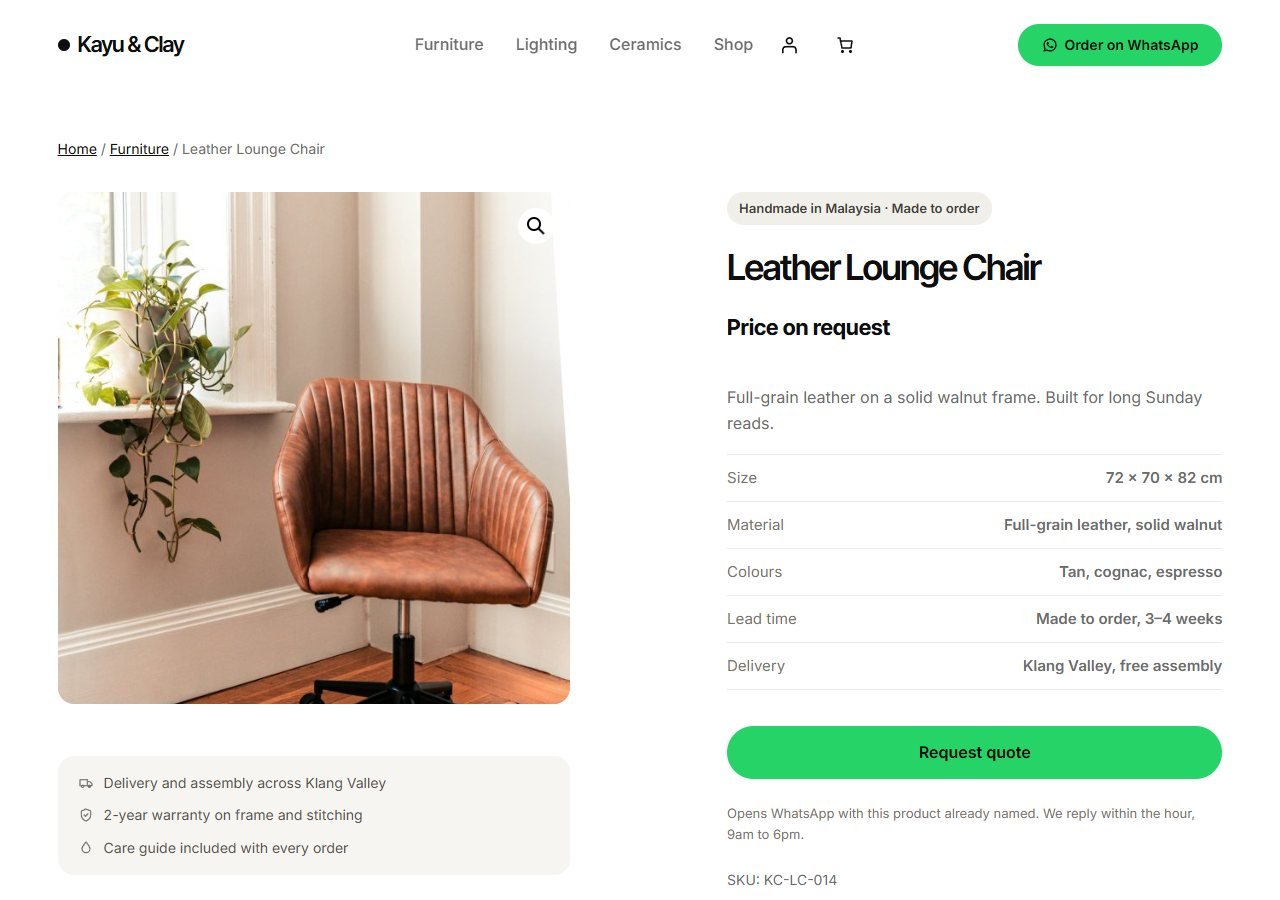
- A "Request quote" button on the product page, and if you like on the shop grid.
- One tap on the button opens WhatsApp with a ready message: your greeting, the product and its link.
- The Add to Cart button hidden on those products, so nobody checks out at a price you did not mean to show.
Step 1: Install the plugin
- In your WordPress admin, go to Plugins > Add New Plugin.
- Search for Underpixel Quote Request, then click Install Now and Activate.
- WooCommerce must be active. The plugin works with Storefront, Astra, Kadence and block themes such as Twenty Twenty-Five.
Step 2: Add your WhatsApp number
- Go to WooCommerce > Quote Request and open the WhatsApp tab.
- Enter your number with the country code and no leading 0. For Malaysia: 60123456789. Spaces, dashes and the + sign are removed when you save.
- Change the greeting if you like. It becomes the first line of the customer's message.
- Click Send test to see the message open in WhatsApp.
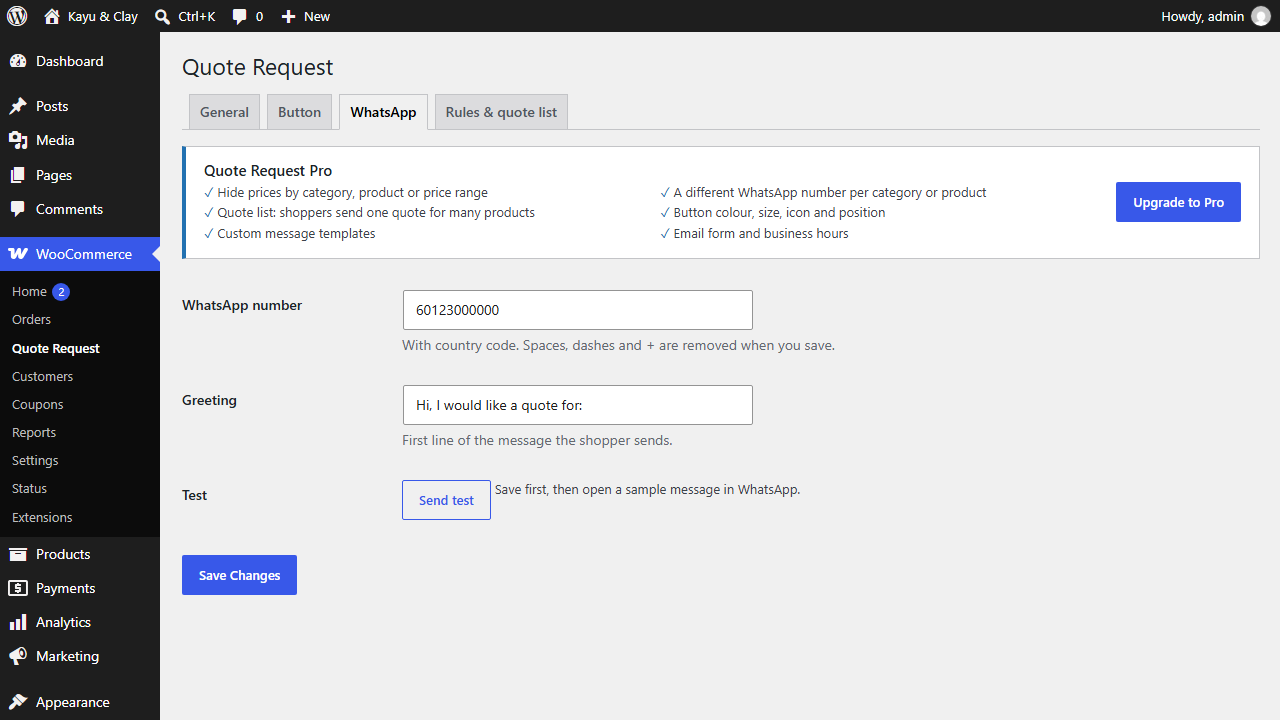
Until a number is saved, the plugin shows no button at all, so customers never press a button that goes nowhere.
Step 3: Hide your prices
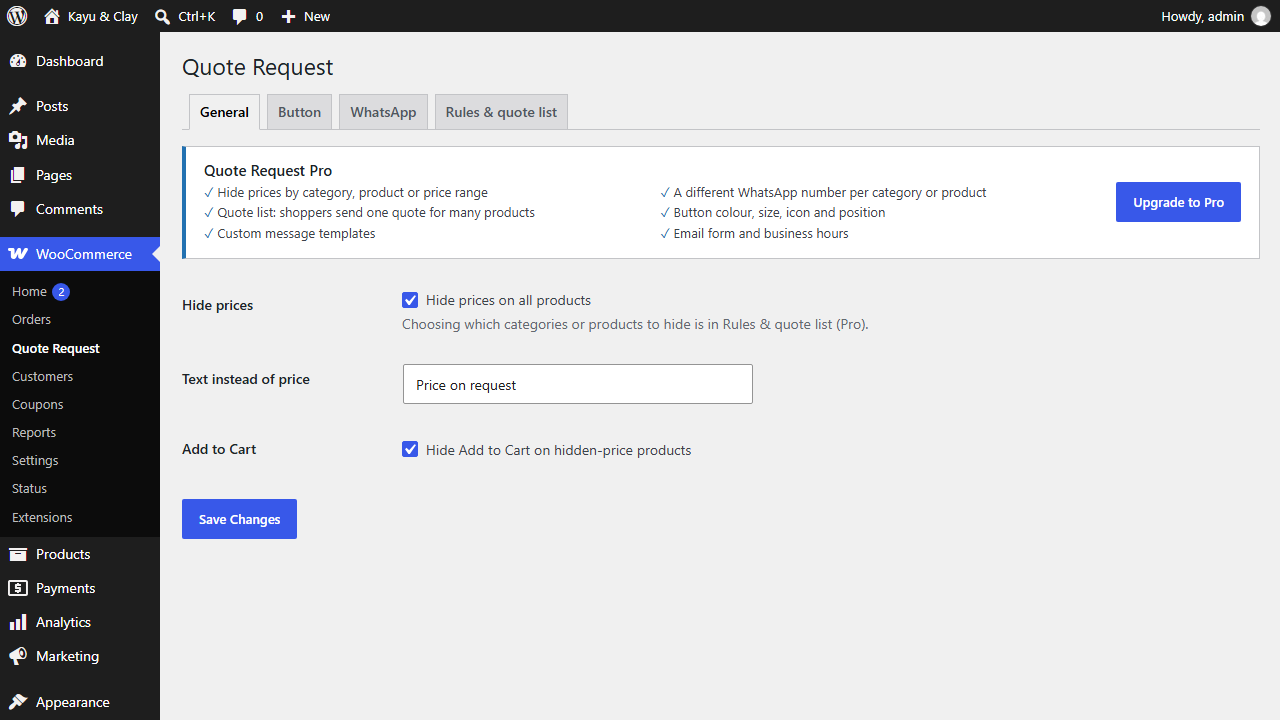
- Open the General tab and tick Hide prices on all products. It is off until you turn it on.
- Type the text to show instead, such as "Price on request" or "Call for price".
- Tick Hide Add to Cart on hidden-price products.
- Save. Your shop now shows your text and the Request quote button.
Step 4: Keep some prices visible (optional)
Selling a few items at a fixed price? Open that product in the editor and choose Don't hide price on this product. You can also do the opposite and always hide the price on one product.
Does it hide the price from Google?
Yes. When a price is hidden, the plugin also removes it from the product's structured data, which is what Google reads for shopping results. Two things are outside the plugin's control: the WooCommerce Store API, which can still return prices to anyone who asks it directly, and SEO or cache plugins that write their own structured data.
When you need more
The free version covers most shops. The Pro upgrade adds hiding by category or product, rules for logged-out visitors or user roles, a quote list so customers can ask about several products in one message, a different WhatsApp number per category, button styling and business hours. You can see every option in the settings before you decide.
Try it on your shop
Underpixel Quote Request is free on WordPress.org. Nothing is locked or time-limited.