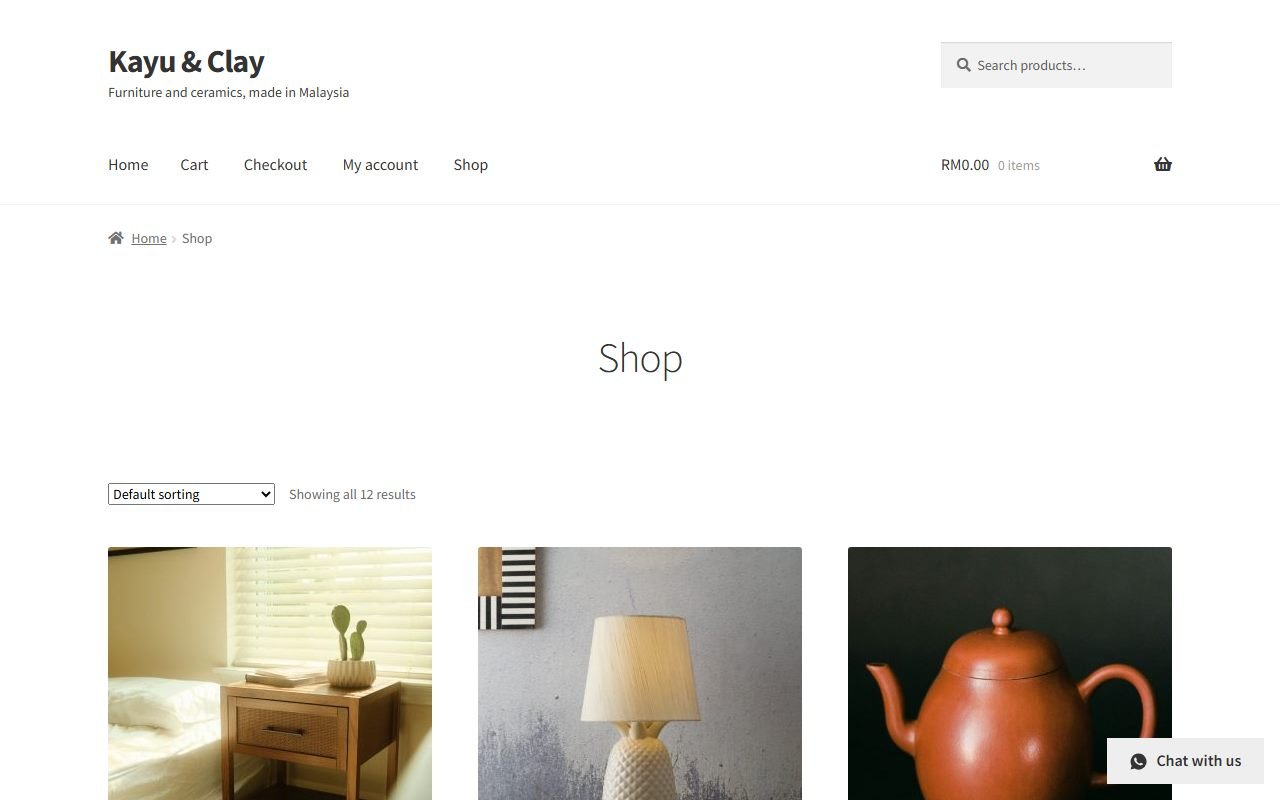
Bakeries, restaurants, florists, small shops and wholesalers often take orders on WhatsApp. The trouble is the chat itself: a photo, then a question, then "make it two", and you piece the order together by hand.
This guide adds a simple order form to any WordPress page with our free plugin Underpixel Order Cart. Customers add items to a cart, choose pickup or delivery, add their details and send the whole order to your WhatsApp as one tidy message. You do not need WooCommerce.
What you receive
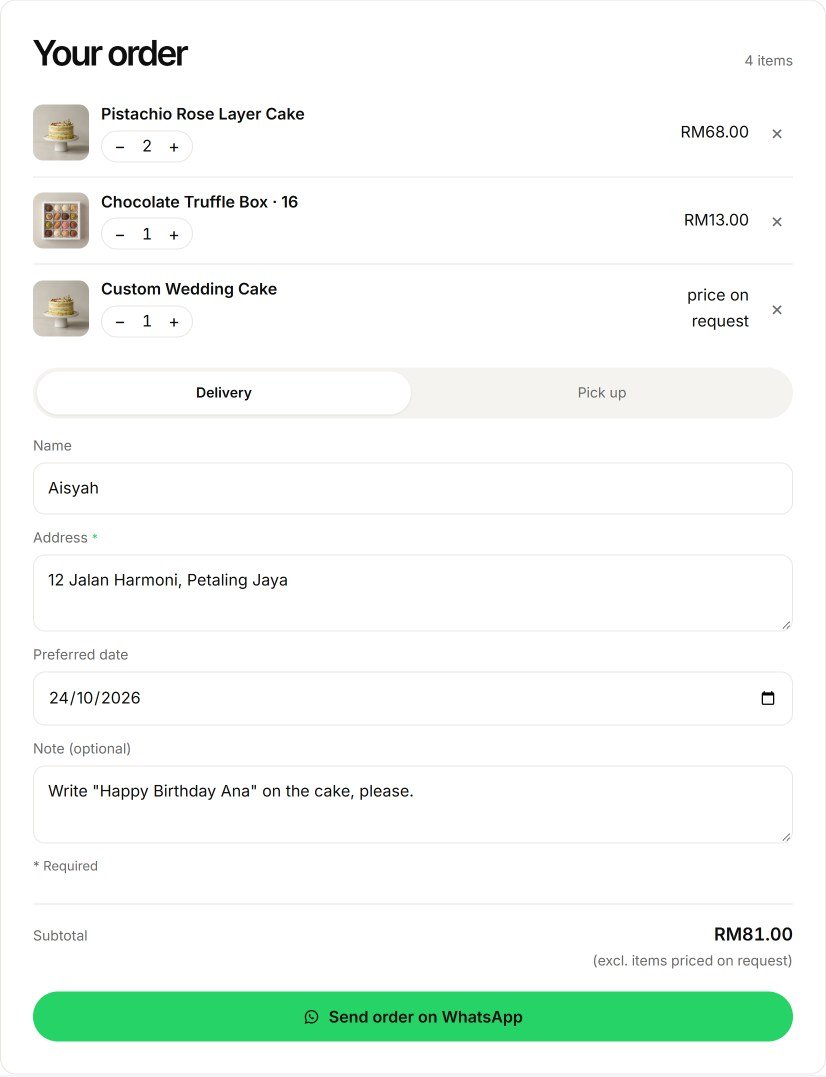
Every order arrives in the same shape, ready to confirm. A real example:
Hi doce forno! I'd like to order:
• 2× Pistachio Rose Layer Cake (RM68.00)
• 1× Chocolate Truffle Box · 16 (RM13.00)
• 1× Custom Wedding Cake (price on request)

Total: RM81.00 (excl. items priced on request)
Delivery
Name: Aisyah
Address: 12 Jalan Harmoni, Petaling Jaya
Date: 2026-10-24
Note: Write "Happy Birthday Ana" on the cake, please.
Step 1: Install the plugin
- In your WordPress admin, go to Plugins > Add New Plugin.
- Search for Underpixel Order Cart, then click Install Now and Activate. WooCommerce is not needed.
Step 2: Add your WhatsApp number
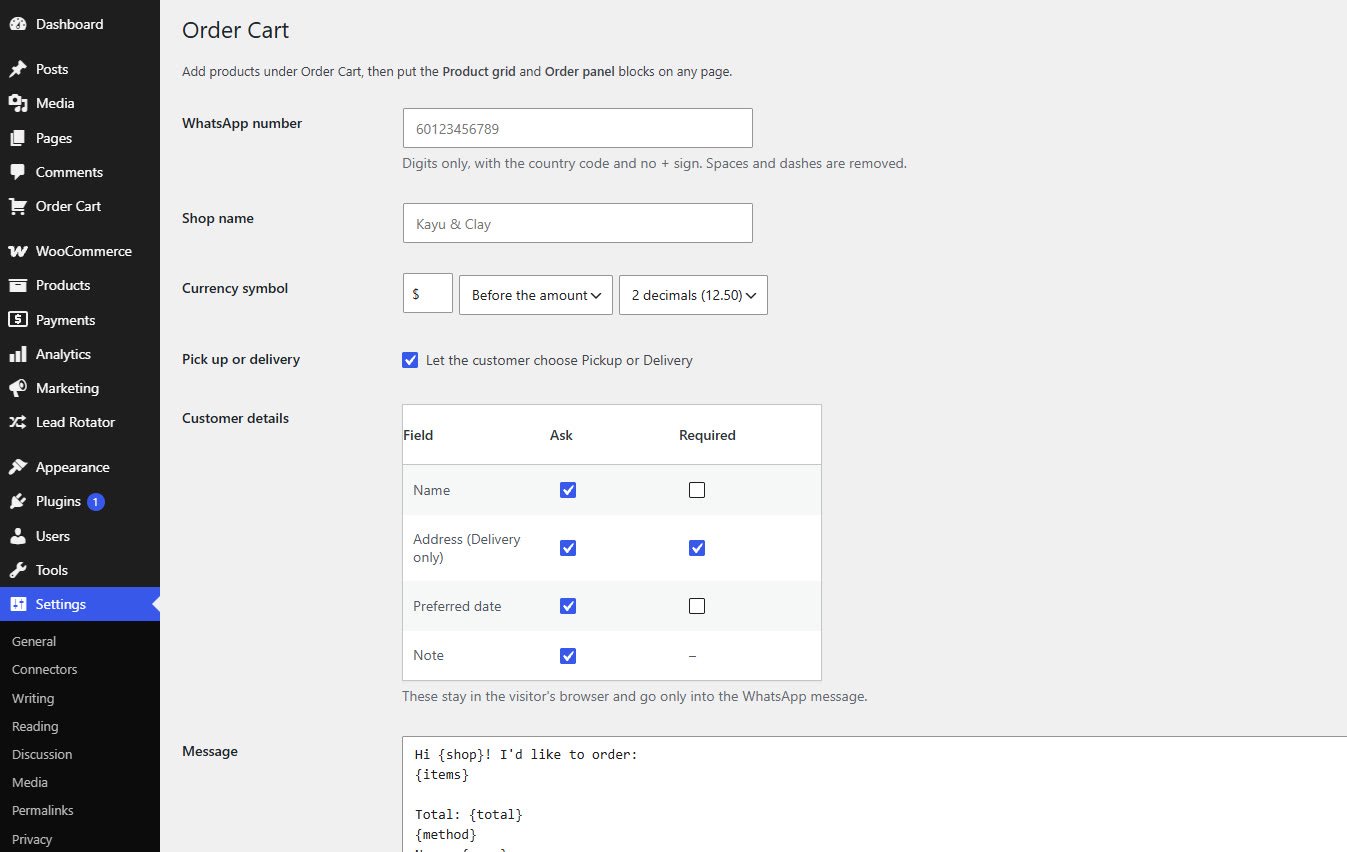
Go to Settings > Order Cart. Enter your WhatsApp number in digits only, with the country code and no + sign, for example 60123456789. Add your shop name, then choose your currency symbol, whether it goes before or after the amount, and the decimals.
Step 3: Add your products
- Open Order Cart > Add New. Each product is edited in the normal block editor.
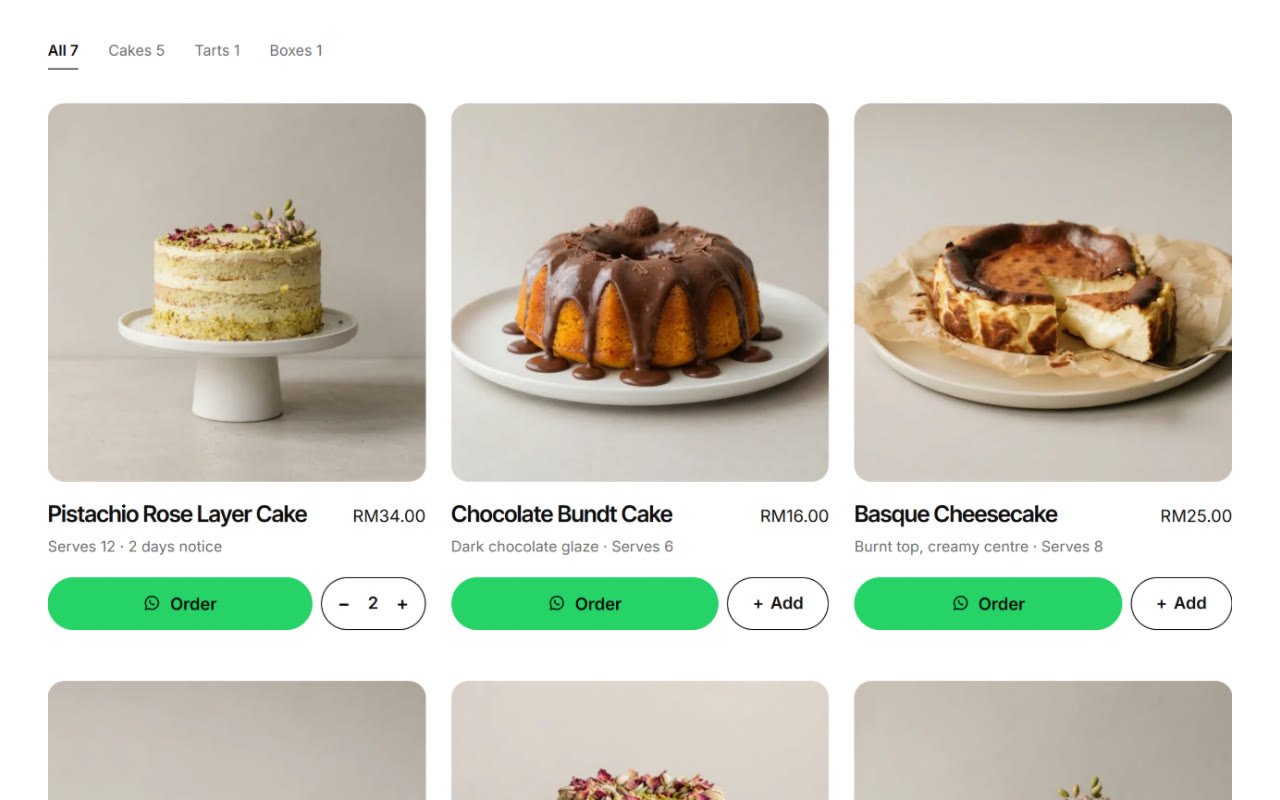
- Add a title, a photo, a short description and a price. Leave the price empty for price on request: the item can still be ordered and is left out of the total.
- Tick Sold out when needed, set the sort order and pick a category. Categories become the filter tabs above your products.
Step 4: Add the two blocks to a page
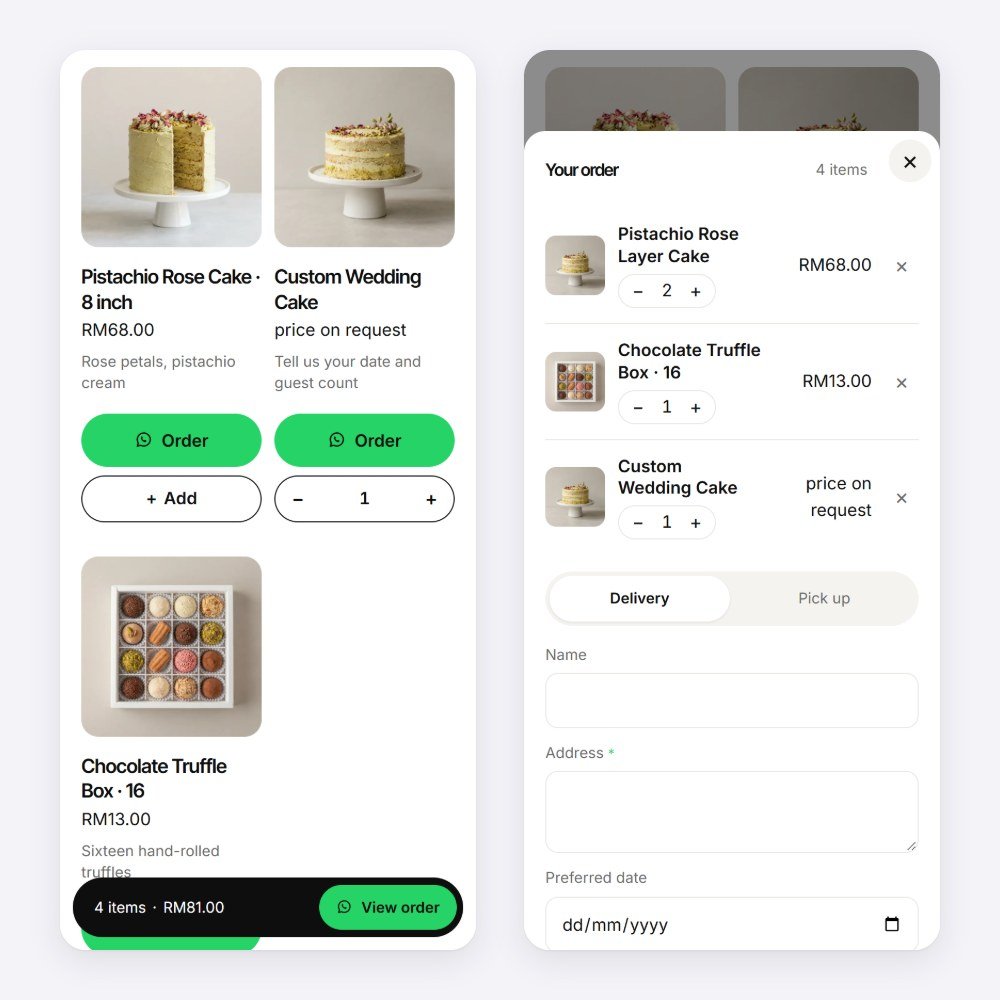
Open any page and add two blocks: Product grid and Order panel. The grid shows your products with category tabs that switch without reloading the page. The panel holds the order: quantity steppers, the subtotal, Pickup or Delivery, and the fields you asked for.
Step 5: Choose the details and the message
- Under Customer details, choose which fields to ask for (name, address for delivery, preferred date, note) and which are required.
- Tick Let the customer choose Pickup or Delivery if you offer both.
- Edit the Message template in your own words. Placeholders fill in the shop, items, total, name, method, address, date and note. An empty placeholder removes its own line.
Step 6: Check it on your phone
Most orders come from phones. A sticky bar at the bottom shows the number of items and the total, and View order opens the order as a bottom sheet. Pressing Send order on WhatsApp opens WhatsApp with the message ready, and the customer taps send.
Already use WooCommerce?
Turn on WooCommerce mode in the same settings. Product pages get an Order on WhatsApp button that names the chosen variation, such as "Size: Box of 12", and uses the quantity box. The cart page gets Send cart on WhatsApp, on the classic cart and the Cart block, with every line, add-on details, coupons and the total. Normal checkout keeps working.
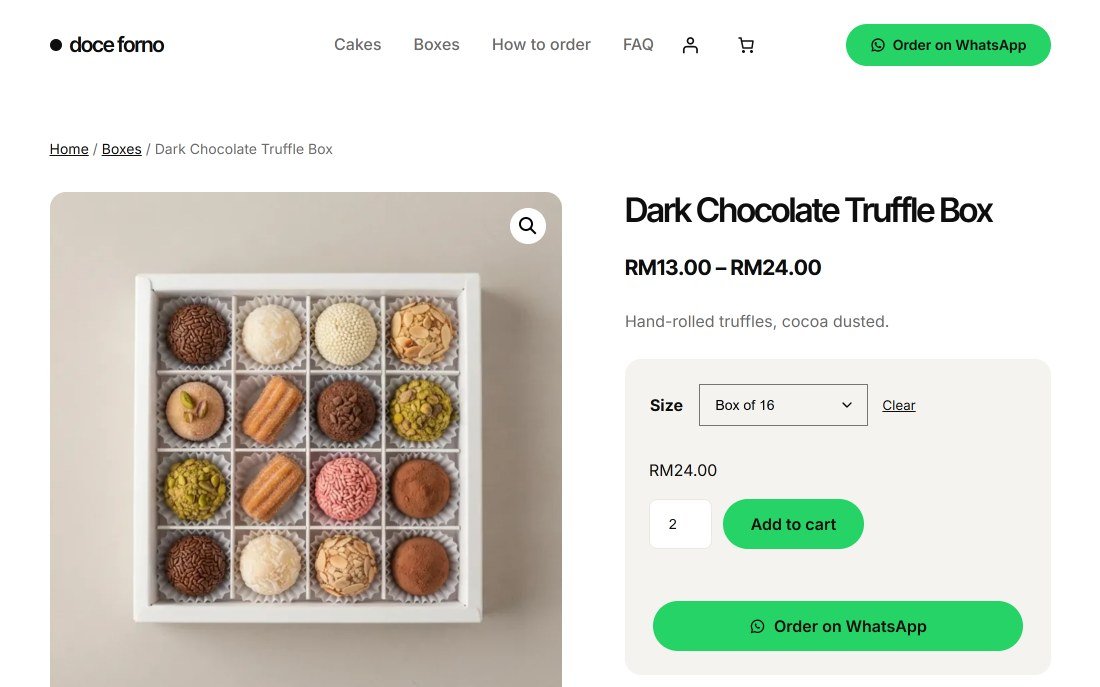
If you only take orders on WhatsApp, the WhatsApp only option hides Add to cart, the mini cart, the cart and checkout. Prices and variation choices stay.
Good to know
- In the free version, the cart and the customer's details stay in their own browser. Nothing is stored on your server and no cookies are set. Pro saves orders to your order list.
- Order Cart works with any theme and uses your theme's colours and fonts. It looks best with our free Uppixe theme.
- It loads one small script with no jQuery, only on pages that use the blocks.
Try it on your site
Underpixel Order Cart is free on WordPress.org. No WooCommerce needed. Pro adds product options, an order list, payment QR and promo codes.